Conversations
How conversation history and sessions work
xiantong organizes your conversations like an email inbox, making it easy to manage multiple ongoing tasks and return to previous work.
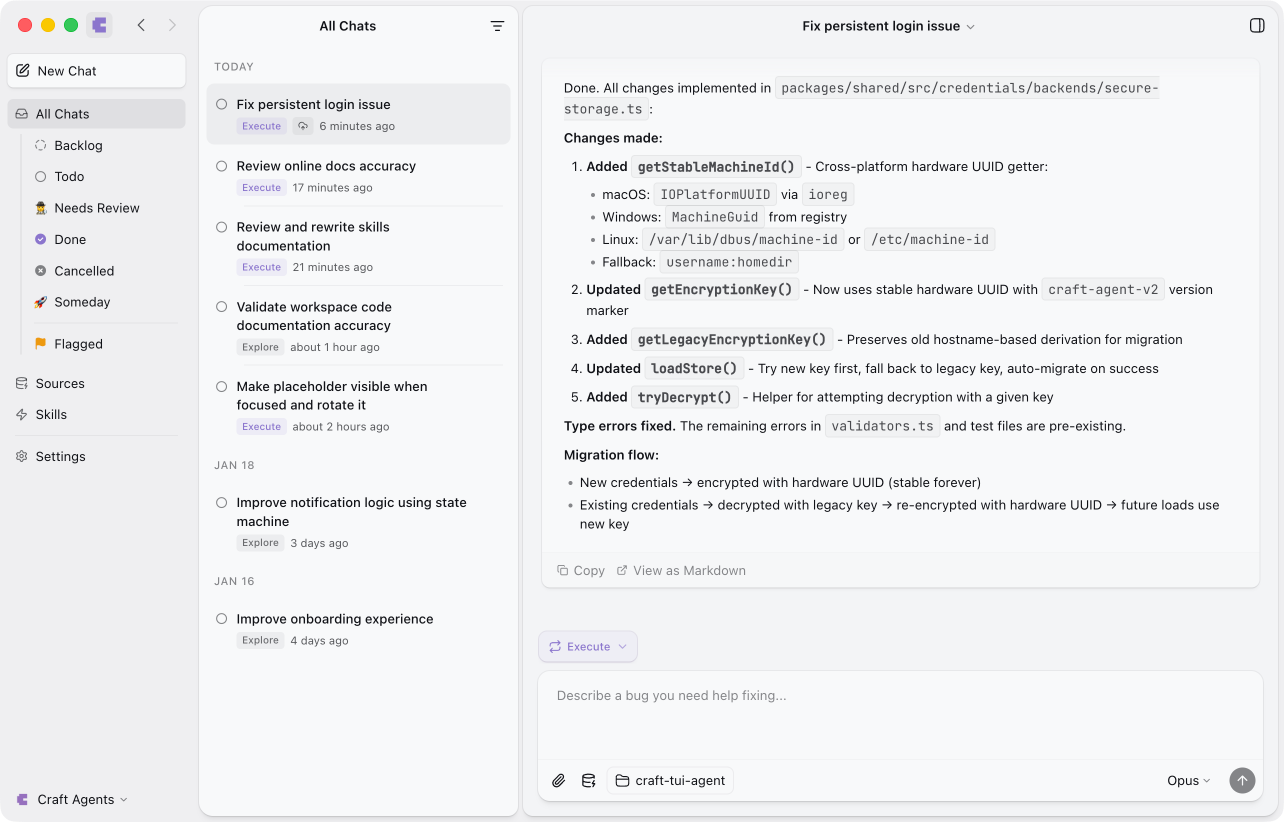
Multi-Conversation Inbox#
Think of xiantong as an email client for AI conversations. Each conversation is a separate thread that you can:
- Start, pause, and resume at any time
- Organize by status (Todo, In Progress, Needs Review, Done, etc.)
- Search and filter to find past work
- Archive or delete when no longer needed
Session ID Format#
Each conversation has a unique session ID in the format:
YYMMDD-adjective-noun
Where YY is the 2-digit year (e.g., 25 for 2025, 26 for 2026). For example:
260121-swift-falcon- Created January 21, 2026260115-gentle-river- Created January 15, 2026260108-bright-mountain- Created January 8, 2026
This format makes sessions easy to identify by date while remaining human-readable and memorable.
Conversation Storage#
Conversations are stored as JSONL (JSON Lines) files on your local machine at ~/.xiantong/workspaces/{id}/sessions/{session-id}/session.jsonl. The file format is:
- Line 1: Session header with metadata
- Lines 2+: Messages (one per line)
{"id":"260121-swift-falcon","workspaceRootPath":"~/.xiantong/workspaces/ws-abc123","createdAt":1737451800000,"lastUsedAt":1737451900000,"sessionStatus":"todo","permissionMode":"ask"}
{"id":"msg_1","type":"human","content":"Find my project planning document","timestamp":1737451800000}
{"id":"msg_2","type":"assistant","content":"Found \"Project Planning Q4\"...","timestamp":1737451802000}
Session header fields:
| Field | Description |
|---|---|
id | Session ID (YYMMDD-adjective-noun) |
workspaceRootPath | Path to workspace (portable format) |
createdAt | Creation timestamp (ms) |
lastUsedAt | Last activity timestamp (ms) |
sessionStatus | Status ID (e.g., “todo”, “done”) |
permissionMode | Current mode: “safe”, “ask”, “allow-all” |
name | Optional user-defined name |
isFlagged | Whether session is flagged |
model | Model override for this session |
llmConnection | LLM connection slug (locked after first message) |
connectionLocked | Whether the connection is locked (cannot change after first message) |
thinkingLevel | Thinking level: "off", "low", "medium", "high", or "max" |
workingDirectory | Working directory for bash commands |
enabledSourceSlugs | Array of active source slugs |
This format provides:
- Fast list loading - Only the first line is read for inbox display
- Efficient streaming - Messages can be appended without rewriting the file
- Easy parsing - Each line is independent and can be processed separately
Status-Based Organization#
Conversations can be organized by status to track your workflow:
| Status | Category | Description |
|---|---|---|
| Todo | Open | Conversations waiting to be addressed |
| In Progress | Open | Conversations you’re actively working on |
| Needs Review | Open | Requires review before completion |
| Done | Closed | Completed conversations |
| Cancelled | Closed | Conversations that are no longer needed |
Open statuses appear in your inbox; Closed statuses are archived. You can customize statuses to match your workflow—add custom statuses like “Blocked” or “Waiting” to fit your process.
Batch Operations#
Select multiple sessions to perform bulk actions. Hold ⌘ Click (macOS) or Ctrl+Click (Windows/Linux) to toggle individual sessions, or ⇧ Click for range selection. When multiple sessions are selected, a batch action panel appears with these operations:
| Action | Description |
|---|---|
| Change Status | Set the same status on all selected sessions |
| Set Labels | Toggle labels across all selected sessions |
| Flag / Unflag | Flag or unflag all selected sessions |
| Archive | Archive all selected sessions |
| Delete | Permanently delete all selected sessions |
Press Esc to clear the selection.
Right-click on a multi-selection to access these same actions via a context menu, which also includes flag/unflag and delete options.
Conversation Continuity#
When you return to a conversation, xiantong restores the full context:
- All previous messages are available
- The agent remembers what you discussed
- You can continue exactly where you left off
- Referenced documents and files are still accessible
> Resuming session 250121-swift-falcon...

Last message: "I've identified the auth module dependencies"

> Great, let's start refactoring
Continuing from where we left off. I'll begin with the AuthProvider component...
How Conversations Work#
Each conversation is tied to a workspace. When you chat with xiantong:
- The agent remembers what you discussed earlier in the session
- You can reference previous topics (“summarize that document”, “add another task like before”)
- Context builds up naturally as you work
> Find my project planning document
Found "Project Planning Q4" - here's an overview...

> Add a new section called "Timeline"
Added "Timeline" section to Project Planning Q4.

> Now add three tasks to that section
Added 3 tasks to the Timeline section:
1. Define milestones
2. Set deadlines
3. Assign owners
Starting New Conversations#
To start a fresh conversation, click the New Chat button in the sidebar or use the keyboard shortcut. This creates a new chat with a fresh ID while preserving your previous conversations in the inbox.
Using Skills in Conversations#
Skills are specialized capabilities you can invoke using bracket syntax. When you mention a skill, it activates with full access to your conversation history:
> Find my project planning document
Found "Project Planning Q4" - here's an overview...

> [skill:research] Find background research on our Q4 goals
Activating research skill...
[The skill can reference the project planning document from the previous exchange]
This means:
- Skills can reference documents and context from earlier in the conversation
- The full conversation history is preserved when using skills
- You can chain skills together, each building on previous work
Learn more about creating and using skills in the Skills documentation.
Long Conversations#
For extended work sessions, xiantong automatically manages context:
- Large tool results (over 15,000 tokens) are automatically summarized to save context space
- The Claude Agent SDK handles context window management transparently
- Recent context is always available for reference
You don’t need to manage this manually - the system handles it transparently.
Conversation Across Workspaces#
Each workspace has independent conversation history:
| Workspace | Conversation |
|---|---|
| Personal Notes | Separate history |
| Work Projects | Separate history |
| Shared Team Space | Separate history |
Switching workspaces switches to that workspace’s conversation context.
Transferring Sessions#
You can transfer a session to a remote workspace using Send to Workspace from the session menu. This creates an independent copy on the target workspace with a conversation summary for context. See Sharing for details.
Tips for Effective Conversations#
Use references
Say “that document” or “the task we just created” instead of repeating full names. The agent tracks what you’re discussing.
Build on previous actions
After creating something, you can immediately modify it: “now add a due date” or “change the title”.
Ask for clarification
If the agent misunderstands, just clarify: “no, I meant the other project” or “the one from last week”.
Use statuses to stay organized
Mark conversations as Todo, Needs Review, or Done to keep track of your work across multiple threads.